

 README

pomo — Terminal Pomodoro Timer
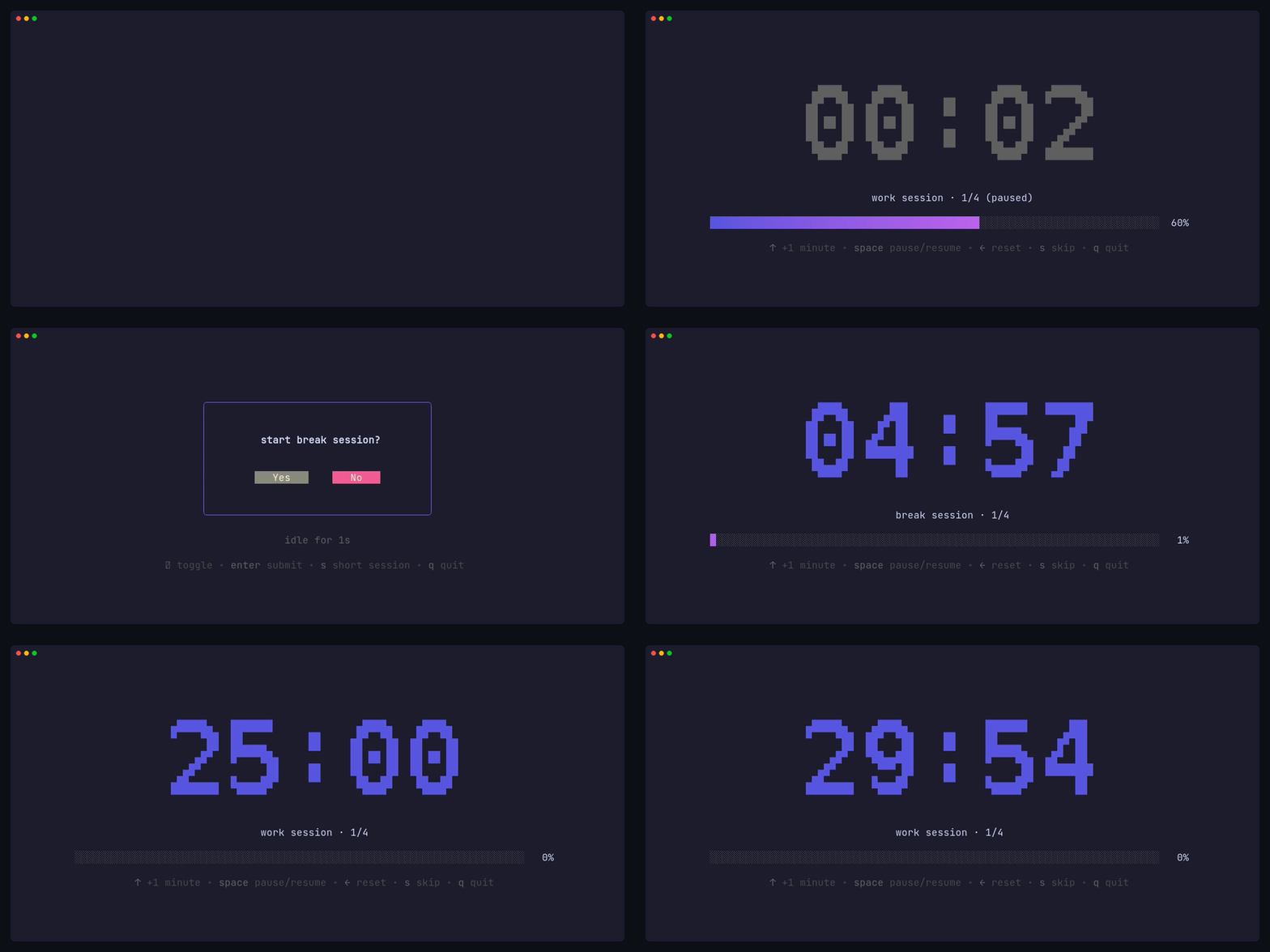


A simple, customizable Pomodoro timer for your terminal, built with Bubble Tea.
Features
- 🍅 Work and break timer sessions
- ⏱️ Stopwatch mode for open-ended work sessions
- 🔄 Pomodoro cycles with long break
- 🔗 Task chaining with user confirmation prompts
- 📊 Real-time progress bar visualization
- ⌨️ Keyboard shortcuts to adjust time mid-session
- ⏸️ Pause and resume sessions
- ⏭️ Skip to next session
- 🔔 Cross-platform desktop notifications
- 🎨 Clean, minimal terminal UI with ASCII art timer fonts
- 🛠️ Custom commands when timers complete
Statistics
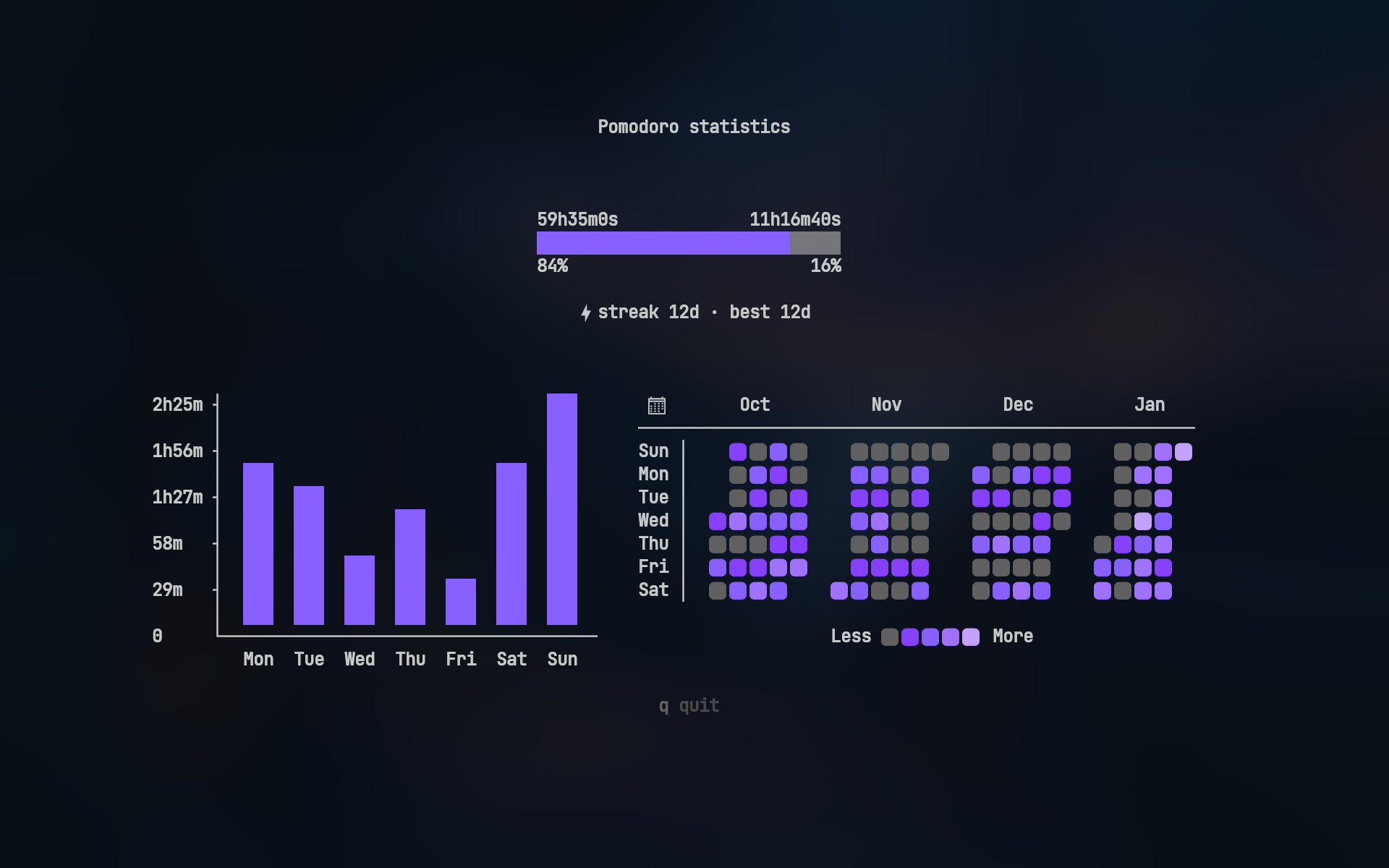
Track and manage your productivity with pomo stats:
- Overview — duration ratio (work vs break), streaks, weekly bar chart, and 4-month heatmap
- Sessions — browse all saved sessions with exact registration date and time
- Group by Title (
-t) — group saved sessions by custom task title, ordered by date and hour - Group by Date — group saved sessions by date with daily work/break totals
- Session management — navigate saved sessions or groups and delete them with confirmation
Heatmap icons require a Nerd Font
Desktop Notifications
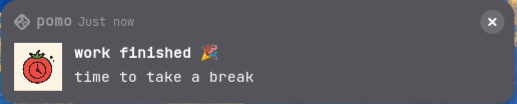
pomo sends native desktop notifications when sessions complete
🔔 View notification examples
Linux (GNOME)
Windows
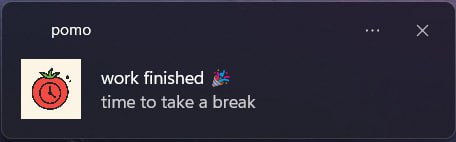
Note: Actual notification appearance varies by operating system and desktop environment
Timer Fonts
| mono12 | rebel |
|---|---|
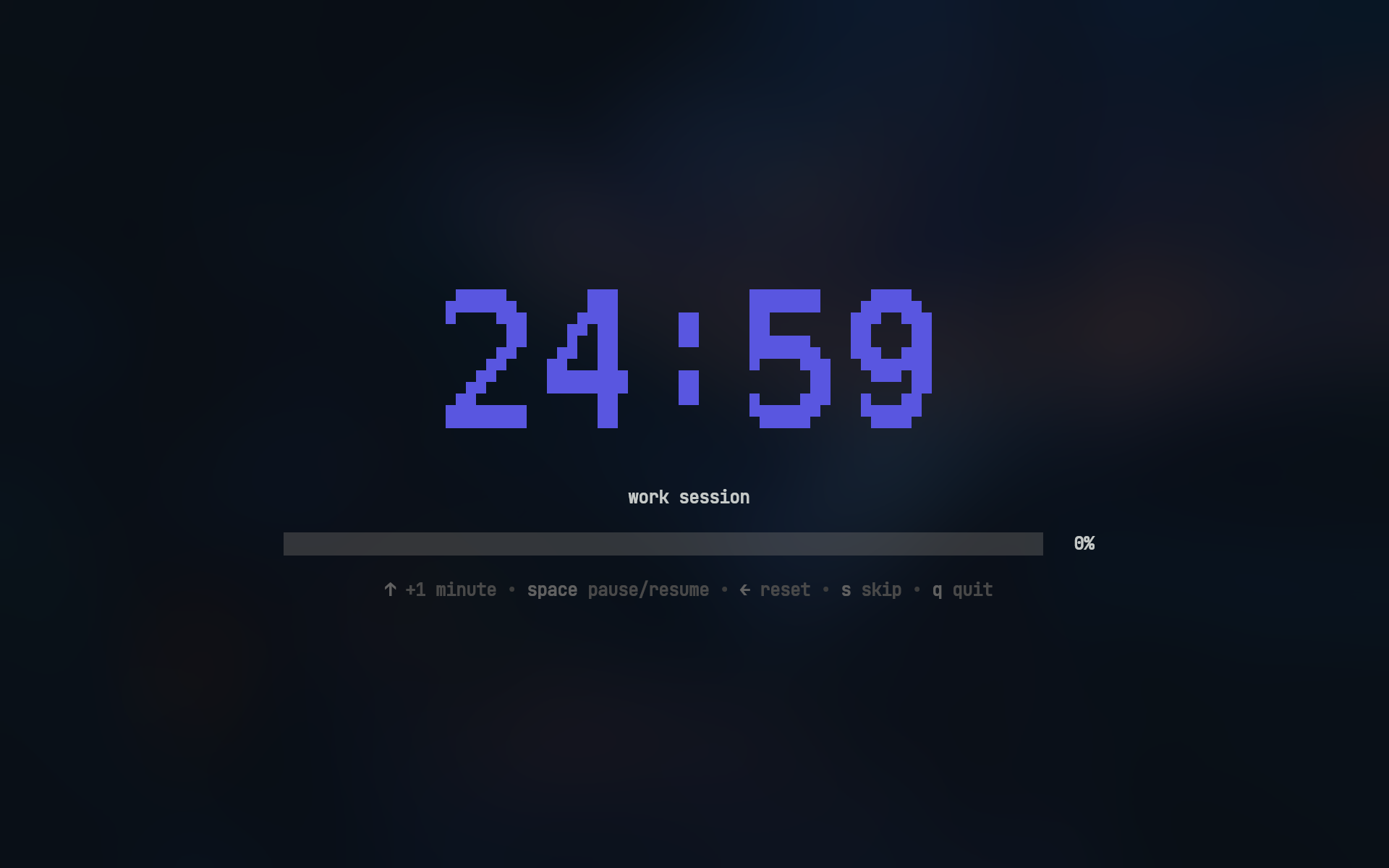 |
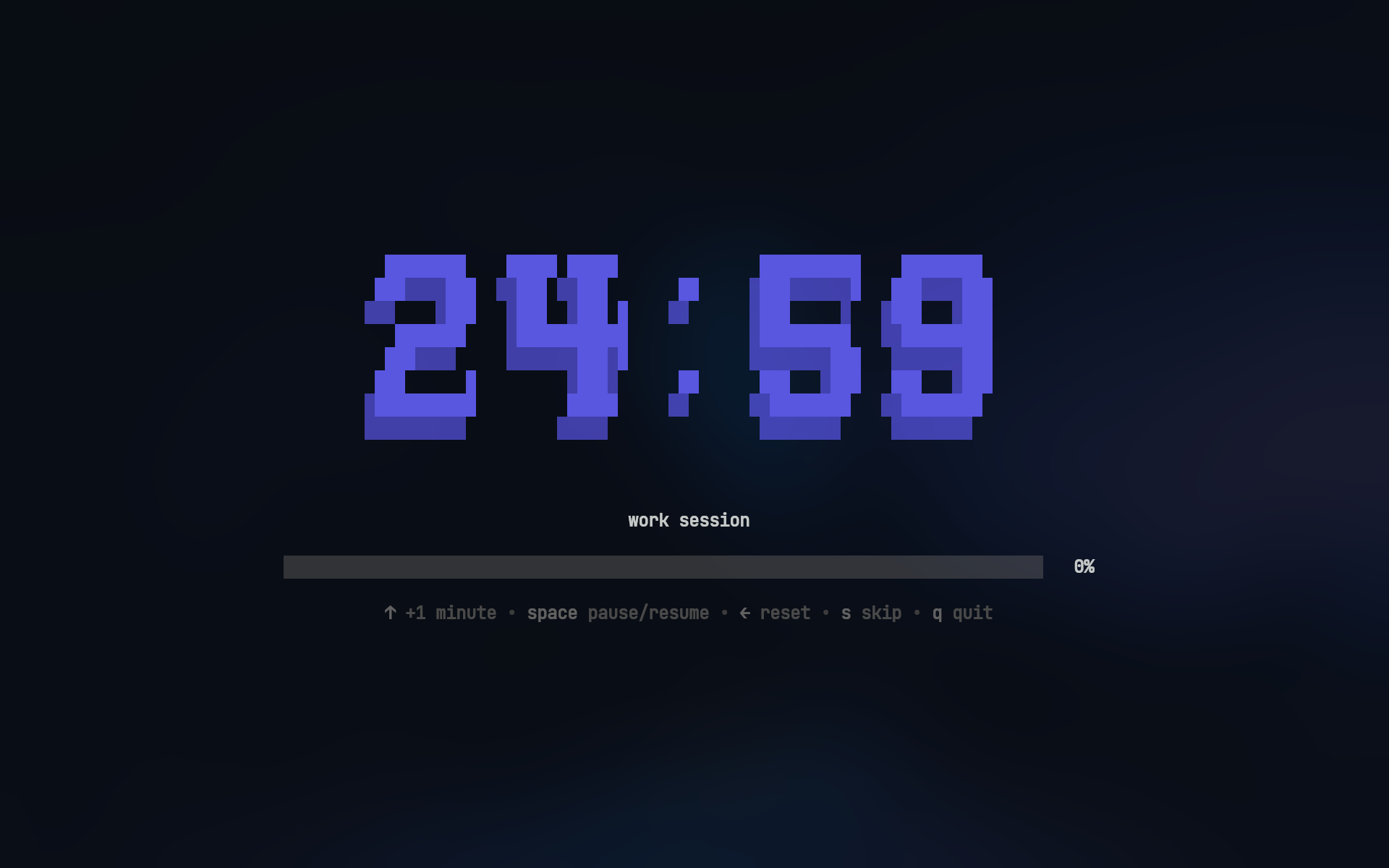 |
| ansi | ansiShadow |
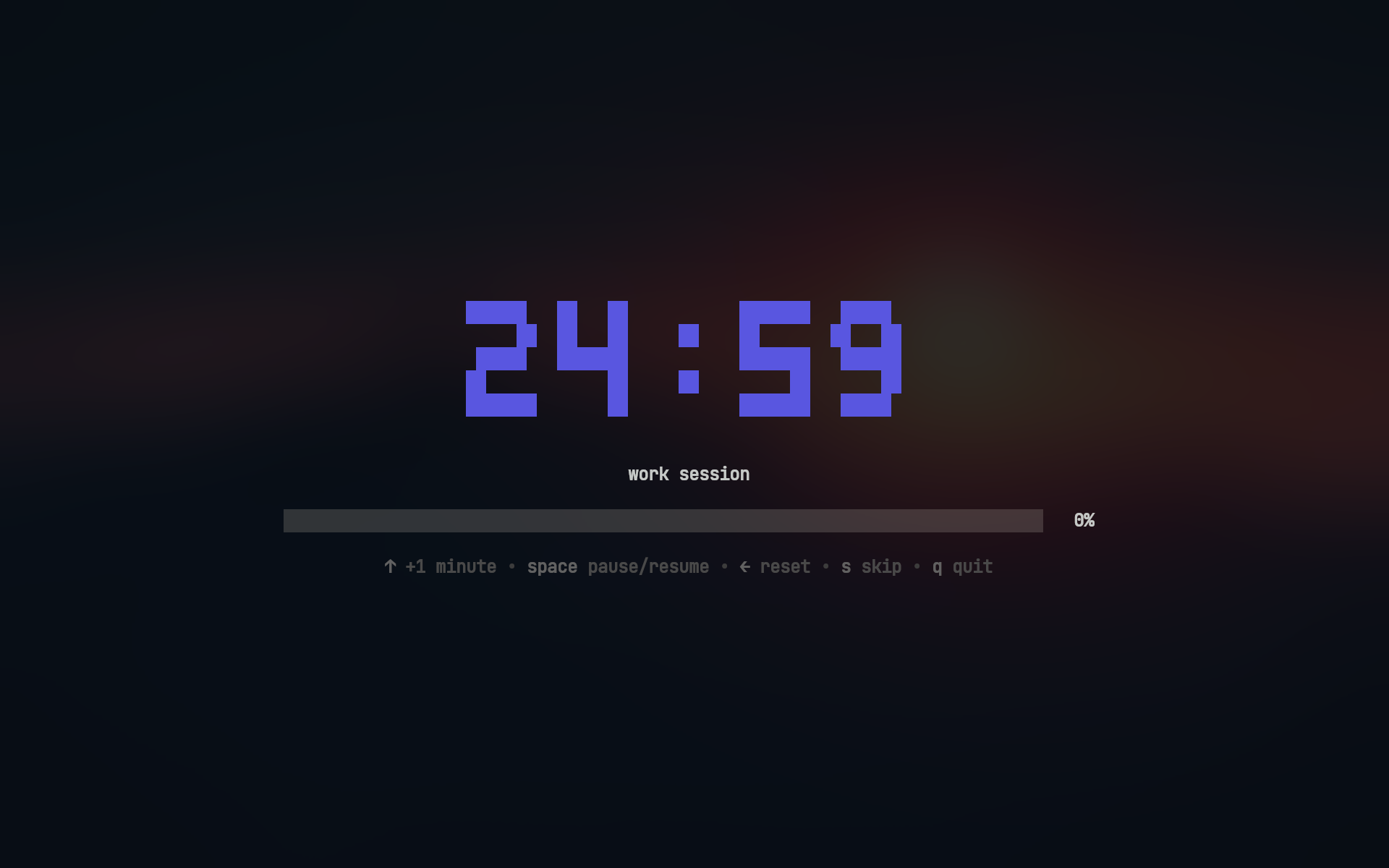 |
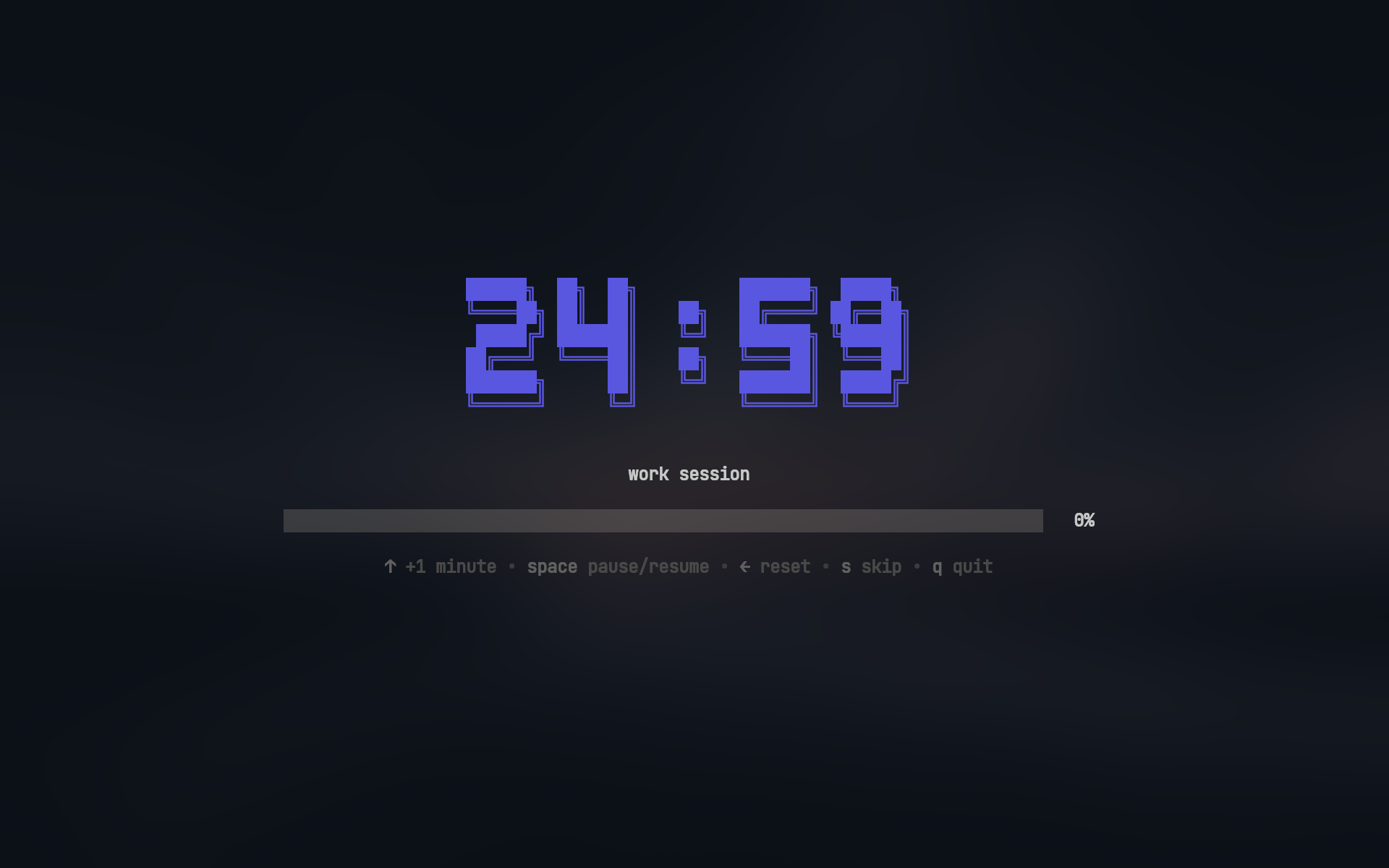 |
Usage
Work sessions:
pomo                    # work session
pomo 30m                # 30m work session
pomo 45m 15m            # 45m work with 15m break
pomo -t "write report"  # work session with custom title (or --title)
Stopwatch sessions:
pomo stopwatch                  # stopwatch session
pomo stopwatch -t "deep work"   # stopwatch session with custom title (or --title)
Break sessions:
pomo break              # break session
pomo break 10m          # 10m break session
Rest sessions (standalone break not saved to DB, counts up extra time when finished):
pomo rest               # standalone rest session
pomo rest 10m           # 10m standalone rest session
View statistics:
pomo stats # View your productivity stats
Installation
Homebrew (macOS)
brew install --cask bahaaio/pomo/pomo
Winget (Windows)
winget install Bahaaio.pomo
Go
go install github.com/binarynotfound/pomo@latest
Pre-built Binaries
Download pre-built binaries from the releases page.
Nix
❄️ Nix flake installation
Option 1: Add to flake inputs and system packages
In your flake.nix:
pomo = {
  url = "github:binarynotfound/pomo";
  inputs.nixpkgs.follows = "nixpkgs";
};
Then add to your system packages:
environment.systemPackages = with pkgs; [
  inputs.pomo.packages.${pkgs.stdenv.hostPlatform.system}.default
];
Option 2: Run directly
nix run github:binarynotfound/pomo
Build from Source
git clone https://github.com/binarynotfound/pomo
cd pomo
go build .
Configuration
📁 Config file search order
pomo looks for its config file in the following order:
- Current directory:
pomo.yaml(highest priority) - System config directory:
- Linux/macOS:
~/.config/pomo/pomo.yaml - Windows:
%APPDATA%\pomo\pomo.yaml
- Linux/macOS:
- Built-in defaults if no config file is found
Example pomo.yaml:
# action to take after session completion
# options: "ask" | "start" | "quit"
onSessionEnd: "ask"

asciiArt:
  # use ASCII art for timer display
  enabled: true

  # available fonts: "mono12" | "rebel" | "ansi" | "ansiShadow"
  # default: mono12
  font: ansiShadow

  # color of the ASCII art timer
  # hex color or "none"
  color: "#5A56E0"

work:
  duration: 25m
  title: work session

  # cross-platform notifications
  notification:
    enabled: true
    urgent: true # persistent notification with alert sound (platform-dependent)
    title: work finished 🎉
    message: time to take a break
    icon: ~/my/icon.png

break:
  duration: 5m

  # will run after the session ends
  then:
    - [spd-say, "Back to work!"]

longBreak:
  # enable long break after a certain number of work sessions
  enabled: true

  # number of work sessions before long break
  after: 4

  # long break duration
  duration: 15m
Check out pomo.yaml for a full example with all options.
Sound Notifications
You can play sounds when sessions complete by running commands in the then section.
work:
  then:
    - [paplay, ~/sounds/work-done.mp3] # Linux
    # - [afplay, ~/sounds/work-done.mp3] # macOS
    # - [powershell, start, work-done.mp3] # Windows
Commands run with a 5 second timeout and are automatically cancelled when starting the next session.
Key Bindings
Timer Controls
| Key | Action |
|---|---|
↑ / k |
Increase time by 1 minute |
Space |
Pause/Resume timer |
← / h |
Reset to initial duration |
s |
Skip to next session |
q / Ctrl+C |
Quit |
Skip button skips directly to the next session, bypassing any prompts
Stopwatch Controls
| Key | Action |
|---|---|
Space |
Pause/Resume stopwatch |
← / h |
Reset elapsed time to 00:00 |
q / Ctrl+C |
Quit and record work session |
Confirmation Dialog
| Key | Action |
|---|---|
y |
Confirm (Yes) |
n |
Cancel (No) |
s |
Start short session (2 minutes) |
Tab |
Toggle selection |
Enter |
Submit choice |
q / Ctrl+C |
Quit |
Short sessions extend the current session by 2 minutes, useful when you need a bit more time
Statistics Controls (pomo stats)
| Key | Action |
|---|---|
Tab / → / l |
Next view (Overview, Sessions, By Title, By Date) |
Shift+Tab / ← / h |
Previous view |
1 - 4 |
Jump directly to view 1–4 |
↑ / k, ↓ / j |
Navigate saved sessions and groups |
Enter / Space |
Expand/collapse group (in By Title / By Date) |
e / r |
Add or change the name of a saved session/group |
d / x / Delete |
Delete selected session or group (asks confirm) |
q / Ctrl+C |
Quit |
License
This project is licensed under the MIT License. See the LICENSE file for details.
 Documentation


There is no documentation for this package.
 Source Files
 Directories

| Path | Synopsis |
|---|---|
|
Package actions provides functionality to run post actions after a task is completed.
|
Package actions provides functionality to run post actions after a task is completed. |
|
Package cmd provides the command-line interface for the pomo timer.
|
Package cmd provides the command-line interface for the pomo timer. |
|
Package config loads, stores, and provides default values for work and break tasks.
|
Package config loads, stores, and provides default values for work and break tasks. |
|
Package db handles the database connection and initialization.
|
Package db handles the database connection and initialization. |
|
Package ui provides the terminal user interface for pomodoro sessions.
|
Package ui provides the terminal user interface for pomodoro sessions. |
|
ascii
Package ascii provides ASCII art style.
|
Package ascii provides ASCII art style. |
|
colors
Package colors defines color constants for UI elements.
|
Package colors defines color constants for UI elements. |
|
confirm
Package confirm provides a simple confirmation dialog component
|
Package confirm provides a simple confirmation dialog component |
|
stats
Package stats implements the statistics view for pomo.
|
Package stats implements the statistics view for pomo. |
|
stats/components
Package components implements UI components for stats.
|
Package components implements UI components for stats. |
|
summary
Package summary tracks pomodoro sessions and renders visual summary with progress bar.
|
Package summary tracks pomodoro sessions and renders visual summary with progress bar. |