

 README

README

Skiff
An opinionated, mouse-first terminal code editor for SSH workflows.
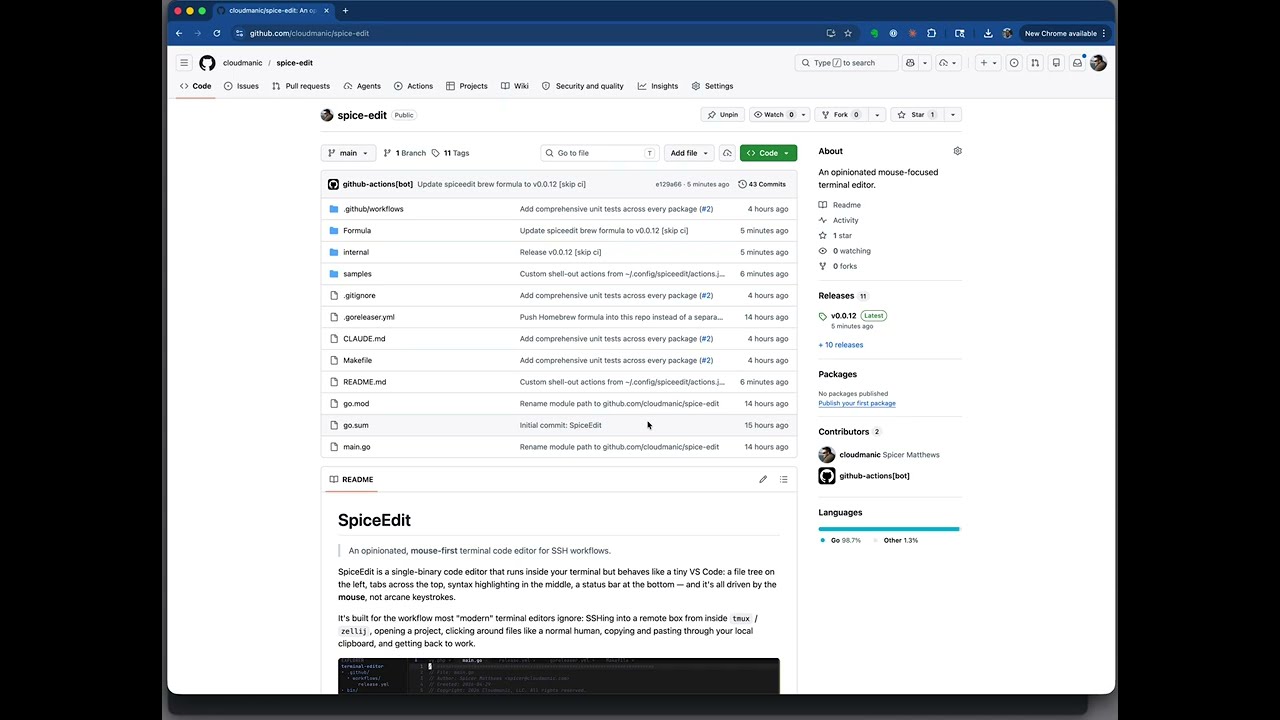
Skiff is a single-binary code editor that runs inside your terminal but behaves like a tiny VS Code: a file tree on the left, tabs across the top, syntax highlighting in the middle, a status bar at the bottom — and it's all driven by the mouse, not arcane keystrokes.
Skiff started life as a fork of SpiceEdit by Spicer Matthews / Cloudmanic, LLC (MIT) and has since grown into its own editor: project-wide search & replace, a full git workflow (commit, push, pull, branches, stash, compare-against-ref), 26 live-preview themes, per-project sessions, preview tabs, and a remote-first performance pass. Original copyright is retained in LICENSE; the theme palettes are ported from druk (MIT).
It's built for the workflow most "modern" terminal editors ignore: SSHing
into a remote box from inside tmux / zellij, opening a project, clicking
around files like a normal human, copying and pasting through your local
clipboard, and getting back to work.
Why does this exist?
Vim and friends are wonderful if you've spent years memorizing them. Most terminal editors assume you have. Skiff doesn't.
The goals, in order:
- Mouse-first. Click a file to open it. Click a tab to switch.
Click-and-drag to select text. Scroll wheel actually scrolls.
Drag the splitter to resize the sidebar. Right-click (or click the
≡icon, or double-tapEsc) for the action menu. - No hot-key archaeology. Save, save & close, quit — they all live
in a centered modal you open with one gesture. No
Ctrl+shortcuts that fighttmux, your shell, or your terminal emulator. - SSH-friendly. Copy uses OSC 52 escape sequences with a tmux passthrough wrapper, so highlighting text on a remote box still ends up in your local Mac clipboard.
- One static binary. No runtime, no plugin manager, no config directory full of YAML. Drop it on a server and run it.
- Looks reasonable. A hand-tuned Tokyo Night palette out of the
box, 25 more themes one menu away (
≡→ Theme… — Catppuccin, Dracula, Gruvbox, Nord, Rosé Pine, Solarized, and friends, ported from druk), and syntax highlighting via chroma (no CGO, no tree-sitter setup).
Features
- VS Code-shaped layout — file tree on the left, tab bar across the top, editor in the middle, status bar at the bottom.
- Mouse-driven everything — click to place cursor, drag to select, scroll wheel scrolls, double-click selects a word, drag past the edge to auto-scroll a selection.
- Syntax highlighting for dozens of languages via Chroma.
- Action menu opened with the
≡icon, right-click, or double-tapEsc. Keyboard navigation works too — arrow keys +Enter. - Live file tree — auto-refreshes every 10 seconds so files added or removed from disk show up without you doing anything.
- External change detection — if a file on disk changes underneath an open clean buffer, the editor reloads it; if your buffer is dirty, you get a heads-up; if the file is deleted, the tab is flagged once.
- Git awareness — changed files tint the file tree, gutter bars mark added/modified/deleted lines (click one for a diff popup), the status bar shows the branch plus a change count, and the sidebar's GIT tab lists every uncommitted change with click-to-diff — VS Code's Source Control view, one click away.
- Project-wide search & replace —
Esc Fsweeps every file in the project (smart-case, with match-case / whole-word / regex chips), groups the hits by file, and opens any hit at its line.Tabgrows a replace field:Enterrewrites the selected line,[ All ](orShift+Enter) rewrites everything behind one confirm. Every line re-verifies against what the search saw before it's touched (regex replacements expand$1/${name}groups;$$is a literal dollar) — files edited since are skipped and reported, never guessed at. Open buffers apply through the editor (per-file undo, dirty tabs stay dirty); closed files rewrite atomically on disk. - Soft wrap, on by default — long lines flow onto continuation
rows (breaking at word boundaries, like VS Code) instead of running
off the right edge, so code and prose read without sideways
scrolling. Prefer panning?
≡→ Unwrap long lines (orEsc z) flips every open tab and persists ({"wrap": "off"}in the same config file the theme lives in); with wrap off, Shift+wheel scrolls sideways and‹/›chevrons mark clipped lines. - Preview tabs — a single tree click opens a file in one reusable italic tab, so browsing ten files doesn't leave ten tabs behind. Click the file again, or just start typing, to pin it.
- Scrollbar with a change map — long files get a clickable, draggable scrollbar on the editor's right edge with the file's git changes marked along it, so "where did I change this file" is one glance (and one click) away.
- File clipboard — cut, copy, paste, and duplicate files or folders
from the tree's right-click menu or the main
≡menu. Nothing is ever overwritten: a taken name becomesname copy.ext. - Session restore — reopening a project brings back your open tabs (cursor and scroll included), expanded folders, and sidebar exactly as you left them.
- 26 themes with live preview —
≡→ Theme… opens a picker that restyles the whole editor as you arrow (or hover) through the list; type to filter ("cat" → the Catppuccins),Enterkeeps,Escputs your old theme back. The choice persists to~/.config/skiff/config.json({"theme": "dracula"}), the same tiny file the Nerd-Font icons preference lives in. Tokyo Night stays the default. - Toggleable, draggable sidebar — show/hide the file tree from the menu, or drag the splitter to resize it.
- Clipboard over SSH — OSC 52, including a
tmuxpassthrough so copy works from inside a tmux session on a remote host. - Format on save — opt-in per-project via
.skiff/format.jsonwith a first-run trust prompt so cloning a repo never silently executes its commands. See Format on save. - Single binary, no CGO — cross-compiled for macOS, Linux, and Windows on amd64 and arm64.
Install
macOS / Linux (Homebrew)
brew install johnlam90/skiff/skiff
That's it — brew resolves the
johnlam90/homebrew-skiff
tap automatically. (If you tried an older install command and it left a
broken tap behind, brew untap johnlam90/skiff first.)
Updating
When a new release ships:
brew update
brew upgrade johnlam90/skiff/skiff
Uninstalling
brew uninstall johnlam90/skiff/skiff
brew untap johnlam90/skiff
Linux (one-line install script)
The simplest way to drop Skiff onto a Linux box (or any macOS that isn't using Homebrew) is the install script:
curl -fsSL https://raw.githubusercontent.com/johnlam90/skiff/main/install.sh | sh
It detects your OS / arch, downloads the matching archive from the
latest GitHub Release,
and drops the skiff binary into ~/.local/bin (or /usr/local/bin
when ~/.local/bin isn't writable). Re-run the same command to
upgrade — it always fetches the latest tagged release.
Override behaviour with environment variables:
# Pin to a specific release.
curl -fsSL https://raw.githubusercontent.com/johnlam90/skiff/main/install.sh \
  | VERSION=v0.0.18 sh

# Install to a custom directory.
curl -fsSL https://raw.githubusercontent.com/johnlam90/skiff/main/install.sh \
  | INSTALL_DIR=/opt/bin sh
The script is plain POSIX sh — it works on Alpine / BusyBox / any
SSH target where you don't want to depend on bash. It only needs tar
plus one of curl or wget.
Other platforms (manual binary install)
Pre-built binaries for Linux, macOS, and Windows (amd64 + arm64) are
attached to every GitHub Release.
Download the archive for your OS/arch, extract it, and drop the
skiff binary somewhere on your $PATH.
From source
git clone https://github.com/johnlam90/skiff.git
cd skiff
make install        # builds and installs to $GOPATH/bin
Usage
skiff              # opens the current directory
skiff ~/code/app   # opens a specific project root
skiff main.go      # opens a file (project root = its parent dir)
skiff main.go:42   # …opened at line 42
skiff new-file.go  # creates the file on first save (vim-style)
skiff --version    # print version and exit
skiff --help       # print short usage
Then:
- Click a file in the tree to open it.
- Click a tab to switch, click the
×to close it. - Click
≡(top-left), right-click anywhere, or double-tapEscfor the action menu — including New file, Rename, Delete. - If your terminal forwards Button3, right-click on a file or folder
in the tree opens a per-item context menu (New File on folders,
Rename, Delete). macOS Terminal + tmux often swallows right-click,
and herdr reserves plain right-click for its own
pane menu (its
right_click_passthrough_modifiersetting can forward modified right-clicks) — so all of those actions also live in the main≡menu. - Drag the splitter between the sidebar and editor to resize.
- Click and drag in the editor to select; drag past the top or bottom
edge to auto-scroll the selection. Releasing the drag copies the
selection (the tmux convention) — with mouse reporting on, your
terminal never has a selection of its own, so
Cmd+Cat the terminal level would grab nothing.Esc ccopies too.
Hotkeys
Skiff deliberately avoids Ctrl+-style shortcuts (they fight tmux,
zellij, and the terminal itself — Ctrl+S is XOFF flow control on a
real terminal). Instead, Esc is the leader key: tap Esc, then
within half a second tap one of the letters below.
| Combo | Action |
|---|---|
Esc Esc |
Open ≡ menu |
Esc s |
Save |
Esc u |
Undo |
Esc r |
Redo |
Esc w |
Close tab |
Esc o |
Reopen closed tab |
Esc q |
Quit |
Esc n |
New file |
Esc t |
Toggle sidebar |
Esc z |
Toggle line wrap |
Esc / |
Toggle line comment |
Esc k |
Move line up |
Esc j |
Move line down |
Esc d |
Duplicate line |
Esc c |
Copy selection |
Esc x |
Cut selection |
Esc v |
Paste |
Esc f |
Find in file |
Esc F |
Find in project |
Esc l |
Go to line |
Esc p |
Find file in project |
Esc g |
Git changes |
A lone Esc is harmless — if you don't follow it with a bound key
within the window, your next keystroke goes to the editor as normal,
so accidental Esc taps never swallow a real character. And while the
window is armed, a one-row cheat-strip above the status bar lists every
key that works right now — no memorizing required.
Everything reachable by hotkey is also reachable from the ≡ menu —
the hotkeys are just a faster path for the actions you reach for most.
Find in file (and replace)
Esc f (or Find in file from the ≡ menu) opens a search bar
above the status bar:
Find: foo█ 3 of 12 Enter: next · Shift+Enter: prev · Esc: close
- Type to search — matching is case-insensitive substring, results highlight live as you type.
Enterjumps to the next match (wraps at the end),Shift+Enterjumps to the previous one.Tabgrows the bar a replace field (Find: foo ⇒ bar):Enterreplaces the current match and walks forward,Shift+Enterreplaces every match in the file as one undo step,Tabhops back to the query.Esccloses the bar and clears the highlights — eachEsc fopens a fresh search.- The active match is painted a brighter color than the rest, so you can pick out where you are in the result set.
There's no regex, whole-word, or case-sensitive toggle in v1 — the common case is "I know roughly what I'm looking for, take me there."
Find file in project
Esc p (or Find file in project from the ≡ menu) opens a
fuzzy file finder over every non-ignored file in the project:
┌ Find file                                                    esc ┐
│  app.go                                              50/12345    │
│  internal/app/app.go                                             │
│  internal/app/app_test.go                                        │
│  internal/finder/score.go                                        │
│  ...                                                             │
└──────────────────────────────────────────────────────────────────┘
- Type to fuzzy-match. The matcher prefers basename hits, consecutive
matches, and word boundaries — typing
tabfindstab.gobeforetabs/foo.gobeforenotable.go. ↑/↓to move,Enterto open,Escto dismiss. Mouse hover highlights, click opens.- Honours
.gitignoreautomatically. The fast path usesgit ls-files --cached --others --exclude-standard(so a 50k-file repo indexes in ~150ms); non-git projects fall back to a Go walker that still respects the project root's.gitignore. - Indexed in the background at startup so the modal opens with results already in hand. Refreshes on the same 10-second cadence as the file tree, plus immediately after any create/rename/delete inside the editor.
- Only files are listed — no directories, no symlinked duplicates.
Git changes
The sidebar has two tabs: EXPLORER and GIT. Click GIT (or
press Esc g, pick Git changes from the ≡ menu, or click the
branch segment in the status bar) and the sidebar flips to the
uncommitted-changes list — VS Code's Source Control view, shrunk to a
Skiff panel:
 EXPLORER   GIT
 ⎇ main ↑1
 [ Commit ] [ Push ] [ Pull ] [ ⋯ ]
 ● M app.go  internal/app
 ● A gitchanges.go  internal/app
 ○ D old.go  internal/app
- Every changed path in the project, sorted, with a colored status letter: M modified, A added/untracked, D deleted, R renamed — the same colors the file tree uses. The file name leads and the directory trails dimmed, so the narrow sidebar stays scannable.
- Click a row to see its diff — side-by-side on a wide terminal
(old text left, new text right, line numbers on both, changes
aligned row-for-row like VS Code's diff editor), automatically
adapting to the classic unified view when the window is too narrow
for two readable columns. Resizing the terminal reflows the open
diff live. On paired modifications the exact characters that
changed are highlighted within the line, and context lines get full
syntax highlighting. Scroll with the trackpad/wheel or
↑/↓/PgUp/PgDn; long lines scroll sideways with Shift+wheel or←/→. The[ Open file ]button (focused by default, soEnterworks too) opens the file with the cursor parked on its first changed line; from there the gutter bars mark each hunk — and clicking a gutter bar opens this same diff view for that hunk. Diff this file in the≡menu shows the active tab's own diff without a trip through the panel. - The
GITtab wears a change-count badge (GIT 4), and git status collection runs on a background goroutine — a slowgit statuson a huge or network-mounted repo can never stall typing. - The status bar shows
main ↑2 ↓1 · 4when the branch has diverged from its upstream — the "you haven't pushed" nudge, before you quit the editor. - Commit straight from the panel. Every row carries a checkbox
(
●in,○out — click to toggle; everything starts checked).[ Commit ]asks for a message and commits exactly the checked files; anything already staged in a shell stays out of it. The same flow lives at≡→ Commit changes…. - Push / Pull / Fetch.
[ Push ]pushes the branch — a branch's first push sets the upstream automatically. A rejected push gets a one-click fix offered ("origin has commits you don't — pull, then push?") instead of a wall of stderr.[ Pull ]fast-forwards; anything needing a real merge fails fast with a plain-language explanation. Fetch lives under[ ⋯ ]. - Branches. Click the branch line (or
≡→ Switch branch…) to pick any local or remote branch — pickingorigin/xcreates the local tracking branch the way you'd expect. New branch… is under[ ⋯ ], next to Stash changes, Pop stash, and Undo last commit (a soft reset: the commit disappears, its changes stay in your tree). - Compare against any ref.
[ ⋯ ]→ Compare against… points the whole editor at another branch: tree tint, gutter bars, the panel's list and every diff show what changed versus that ref — "review this branch against main" as a mode. The status bar shows⇆ mainwhile it's on; pick HEAD to come back. Committing is deliberately disabled in this mode (the index is always HEAD's). - Walk a review with the arrows. With a panel-opened diff up,
↓/↑jump straight to the next / previous changed file — read the whole change-set end to end without touching the mouse. Every git mutation runs on a background goroutine (never blocking typing), one at a time, and refreshes the panel, tree tint, and gutter marks when it lands. - Commit history (
≡menu, or under the panel's[ ⋯ ]button) lists recent commits — SHA, subject, relative age — and a click opens that commit's full diff, with per-file boundary rows for multi-file commits. History of this file does the same scoped to the active tab (with--follow, so renames don't truncate the story). Both are read-only — rewriting old history stays in your shell. - An untracked file shows its whole content as an added diff. A deleted file shows what was removed, with no open button — there is nothing left to open. An untracked directory flips back to the explorer and reveals itself.
- The status bar shows
branch · Nwhile anything is uncommitted; clicking it is the mouse-first way in from anywhere. - The list refreshes live on the same 10-second cadence as the file
tree, so a
git checkoutin the next tmux pane empties it on its own.Esc gtoggles back to the explorer, or just clickEXPLORER.
Read-only by design: staging, committing, and discarding stay in your shell. Skiff shows you what changed and takes you there — it doesn't try to be a git client.
Custom actions (open remote files on your laptop)
Skiff can read user-defined shell-out actions from
~/.config/skiff/actions.json and prepend them to the action menu.
Each action runs against the currently open file when you click it.
The use case this was built for: you SSH from your laptop into a remote box, edit a file there, and want to open it on your laptop — but neither Sixel nor the Kitty graphics protocol survive the trip through zellij/tmux. The trick is to bypass the terminal entirely and pipe the file back over a second SSH connection.
File location
~/.config/skiff/actions.json (or $XDG_CONFIG_HOME/skiff/actions.json
when set). The file is optional — without it, the menu just shows the
built-in actions.
Schema
{
  "actions": [
    {
      "label": "Open on Rager",
      "command": "scp \"$FILE\" rager:~/Downloads/ && ssh rager open \"~/Downloads/$FILENAME\""
    },
    {
      "label": "Open on Cascade",
      "command": "scp \"$FILE\" cascade:~/Downloads/ && ssh cascade open \"~/Downloads/$FILENAME\""
    }
  ]
}
Each entry needs:
label— the menu text (kept under ~30 chars; long labels clip inside the modal).command— handed tosh -cwith two env variables exported:FILE— absolute path of the active tab's fileFILENAME— basename of the same file
$HOMEand~gotcha for two-hop SSH: the command runs in a shell on the Skiff host (the remote box you SSH'd into). So$HOMEand~outside ofssh "..."quotes expand to that box's home directory, not your laptop's. To run something on your laptop, wrap the remote command in quotes:ssh rager "open ~/Downloads/$FILENAME"—$FILENAMEis expanded locally (you want that — it's a filename), but~is sent literally and rager's shell expands it on arrival.
The action only enables when there's a file open. Commands run in a
background goroutine, so a slow scp or hanging ssh won't freeze
the editor; success or failure flashes in the status bar when it
finishes.
Debugging — every run is logged
Every custom-action invocation appends a record to
~/.local/state/skiff/actions.log (or
$XDG_STATE_HOME/skiff/actions.log when set). One entry per run,
human-readable, with the exact command, the env vars that were
exported, the duration, and the combined stdout / stderr:
[2026-04-30T13:26:32-07:00] Open on Rager (1.234s) → ok
  command: scp "$FILE" rager:~/Downloads/ && ssh rager open "$HOME/Downloads/$FILENAME"
  FILE:     /Users/spicer/dev/foo/bar.txt
  FILENAME: bar.txt
  --- output ---
  --- end ---

[2026-04-30T13:27:01-07:00] Open on Cascade (0.521s) → exit status 1
  command: scp "$FILE" cascade:~/Downloads/ && ssh cascade open "$HOME/Downloads/$FILENAME"
  FILE:     /Users/spicer/dev/foo/bar.txt
  FILENAME: bar.txt
  --- output ---
  ssh: connect to host cascade port 22: Connection refused
  lost connection
  --- end ---
tail -f ~/.local/state/skiff/actions.log while you click around
to watch entries roll in. There's no rotation — the file is one-line
per run plus a few lines of output, so it grows slowly. Delete it
whenever you want to start fresh.
The "open on my laptop" workflow
Both example actions assume rager and cascade are SSH host aliases
in the remote machine's ~/.ssh/config that resolve back to your
laptop. The simplest way to set that up:
-
On your laptop, generate (or pick) an SSH key pair you'll dedicate to inbound connections from your remote work box.
-
On your laptop, make sure Remote Login is enabled (System Settings → General → Sharing → Remote Login on macOS) and add the public key to
~/.ssh/authorized_keys. -
On the remote box, drop the matching private key into
~/.ssh/id_<name>and add a host alias:Host rager HostName your-laptop.example.com # or a Tailscale / mesh hostname User your-mac-username IdentityFile ~/.ssh/id_rager -
Test it by hand from the remote:
ssh rager echo hi. Once that works, Skiff can drive it the same way.
If your laptop sits behind NAT, point HostName at a Tailscale /
WireGuard / Cloudflare-tunnel address — anywhere the remote can reach
the laptop directly. The action itself is just scp + ssh; it
doesn't care how the network gets there.
Anything else sh can do
The schema is deliberately small. If you can write it on one shell
line, you can put it in actions.json:
{ "label": "Send to ChatGPT", "command": "cat \"$FILE\" | pbcopy && open https://chat.openai.com/" }
{ "label": "Lint with eslint", "command": "cd $(dirname \"$FILE\") && eslint \"$FILENAME\"" }
{ "label": "Run formatter",    "command": "gofmt -w \"$FILE\"" }
Format on save
Skiff can run a formatter on every save — gofmt, php-cs-fixer,
prettier, anything you like — but the feature is off by default
and only kicks in for projects that opt in by checking in a config
file. Quick edits to a stranger's repo will never silently rewrite
their files.
Setup
Create .skiff/format.json in your project root:
{
  "commands": {
    "go":  ["gofmt", "-w", "$FILE"],
    "php": ["php-cs-fixer", "fix", "$FILE", "--quiet"],
    "py":  ["ruff", "format", "$FILE"],
    "js":  ["prettier", "--write", "$FILE"],
    "ts":  ["prettier", "--write", "$FILE"]
  }
}
- Keys are file extensions, without the leading dot.
- Values are argv arrays — passed straight to
execve, no shell, so there's no injection surface. (Use["sh", "-c", "..."]if you genuinely need a shell.) $FILEin any argument is replaced with the absolute path of the file being saved.
First save: trust prompt
The first time Skiff would run a formatter from a new (or edited)
.skiff/format.json, you get a Yes / No prompt:
Trust this project's formatter? Allow .skiff/format.json to run formatters on save?
Pick Yes once and Skiff will run the configured formatters
silently from then on. Pick No and it will never run them in this
project — until the config file changes, at which point you'll be
prompted again. The remembered answer (and the SHA-256 hash of the
config it applies to) lives in
~/.config/skiff/format-trust.json.
The hash is the security trick: a teammate can't push a "v2" of the
config that runs rm -rf — your editor will re-prompt the next time
you save, because the file has changed since you trusted it.
What happens on save
- Save writes the file to disk first. A broken formatter never blocks the save.
- Skiff looks up the file's extension in
format.json. No match → done. - The configured command runs in a goroutine. Slow formatters don't freeze the UI; you can keep typing.
- When the formatter finishes, Skiff reloads the buffer — but only if you haven't typed anything since saving. If you did, your in-flight edits win and a status flash tells you the on-disk file was reformatted.
- If the configured binary isn't installed, it's a silent no-op. You don't have to install everyone's formatter to clone the repo.
Sharing vs. ignoring
Two reasonable patterns:
- Commit
.skiff/format.jsonso everyone on the team gets the same format-on-save behavior automatically. - Add
.skiff/to.gitignoreif developers prefer their own setups — each person's local copy can configure whatever formatters they like.
Both work. Skiff doesn't care which you pick.
Personal defaults — the install prompt
You can list your favorite formatters once globally in
~/.config/skiff/format-defaults.json (same shape as the
project file):
{
  "commands": {
    "go":  ["gofmt", "-w", "$FILE"],
    "php": ["php-cs-fixer", "fix", "$FILE", "--quiet"],
    "py":  ["ruff", "format", "$FILE"]
  }
}
These never run on their own. Instead, when you save a file in a project where:
- The project's
.skiff/format.jsonis missing or has no entry for that file's extension, and - Your global defaults do have an entry for that extension,
…Skiff asks once: "Add gofmt for .go to .skiff/format.json?"
- Yes — merges the entry into the project's config (creating
.skiff/format.jsonif it didn't exist), auto-trusts the resulting file, and runs the formatter on the save you just made. - No / Esc — remembered per-extension in the trust file. You won't be re-asked about that file type in this project until you manually edit the project config.
This keeps your personal preferences out of repos that don't want them while still making it one click to opt a project in.
Project layout
.
├── main.go                   # Entry point — parses optional rootDir arg
├── internal/
│   ├── app/                  # Event loop, layout, menu modal, splitter
│   ├── editor/               # Buffer, tab, cursor, syntax highlighting
│   ├── filetree/             # Lazy directory tree with identity-preserving refresh
│   ├── clipboard/            # OSC 52 clipboard with tmux passthrough
│   ├── customactions/        # Loader for ~/.config/skiff/actions.json
│   ├── format/               # Format-on-save config + trust store
│   ├── finder/               # Project file index + fuzzy matcher
│   ├── theme/                # Tokyo Night-inspired palette
│   └── version/              # Single-line version constant
├── .github/workflows/        # Auto-release pipeline
├── .goreleaser.yml           # Cross-compile + brew formula config
├── Formula/                  # Homebrew formula (written by CI)
└── Makefile
Development
make run          # build and run against the current directory
make build        # build to ./bin/skiff
make build-linux  # cross-compile a linux/amd64 binary
make test         # full suite with -race (same as CI)
make test-short   # quick iteration loop (-short, no race)
make coverage     # writes coverage.out + a browsable coverage.html
make tidy         # go mod tidy
make clean        # rm -rf bin + coverage artifacts
Every push and PR runs go test ./... on Linux + macOS via
.github/workflows/test.yml. New code
needs a corresponding _test.go — see CLAUDE.md for the bar.
Releases
Releases are fully automated. Every push to main:
- Reads
internal/version/version.go. - If that file was hand-edited in the pushed commit, the version is
used as-is (this is how you bump major or minor: edit the constant
manually). Otherwise the patch number is auto-bumped and committed
back to
mainwith[skip ci]. - Tags
v<x.y.z>and pushes the tag. - GoReleaser cross-compiles for
linux/darwin/windows × amd64/arm64, attaches archives to a GitHub
Release, and pushes an updated formula into
Formula/skiff.rbon this same repo.
No PAT, no separate tap repo — the default workflow GITHUB_TOKEN is
enough since the formula lives in the source repo.
License
MIT — see LICENSE.
Copyright © 2026 Cloudmanic, LLC.
 Documentation

Documentation

Overview 
Command skiff is Skiff — an opinionated, mouse-first terminal code editor. It is designed for the SSH-into-a-box workflow: a single static binary, drop it on the remote host, run it inside tmux/zellij, and you get a VS-Code-shaped UI (file tree, tabs, syntax highlighting, status bar) you can drive almost entirely with the mouse.
 Source Files
 Directories

Directories

| Path | Synopsis |
|---|---|
|
internal
|
|
|
app
Package app is the editor's top-level glue: it owns the tcell screen, the file tree, the open tabs, and the event loop.
|
Package app is the editor's top-level glue: it owns the tcell screen, the file tree, the open tabs, and the event loop. |
|
clipboard
Package clipboard pushes text onto the host system clipboard via the OSC 52 terminal escape sequence.
|
Package clipboard pushes text onto the host system clipboard via the OSC 52 terminal escape sequence. |
|
editor
Package editor provides the text-buffer primitives, the syntax highlighter, and the Tab type that combines them with view state and rendering.
|
Package editor provides the text-buffer primitives, the syntax highlighter, and the Tab type that combines them with view state and rendering. |
|
filetree
Package filetree implements the left-hand sidebar's file explorer.
|
Package filetree implements the left-hand sidebar's file explorer. |
|
finder
Package finder implements project-wide file search: an in-memory index of every non-ignored file under the project root, plus a fuzzy matcher that ranks paths against a typed query.
|
Package finder implements project-wide file search: an in-memory index of every non-ignored file under the project root, plus a fuzzy matcher that ranks paths against a typed query. |
|
format
Package format loads the per-project formatter configuration that drives format-on-save.
|
Package format loads the per-project formatter configuration that drives format-on-save. |
|
git
Package git owns skiff's git process boundary: every git invocation in the editor goes through one Repo handle, so environment hardening (no credential prompts, no editor spawns) and read timeouts exist exactly once instead of per call site.
|
Package git owns skiff's git process boundary: every git invocation in the editor goes through one Repo handle, so environment hardening (no credential prompts, no editor spawns) and read timeouts exist exactly once instead of per call site. |
|
icons
Package icons provides Nerd Font glyphs for the file tree along with a best-effort detector that decides whether the user's terminal is likely to render them.
|
Package icons provides Nerd Font glyphs for the file tree along with a best-effort detector that decides whether the user's terminal is likely to render them. |
|
overlay
Package overlay owns skiff's floating surfaces — the overlays.
|
Package overlay owns skiff's floating surfaces — the overlays. |
|
search
Package search implements project-wide literal content search over a pre-built file list (the fuzzy finder's git-aware index).
|
Package search implements project-wide literal content search over a pre-built file list (the fuzzy finder's git-aware index). |
|
session
Package session persists per-project editor state — open tabs (with cursor and scroll), the active tab, expanded tree folders, and the sidebar — so reopening a project puts the user back where they left off.
|
Package session persists per-project editor state — open tabs (with cursor and scroll), the active tab, expanded tree folders, and the sidebar — so reopening a project puts the user back where they left off. |
|
theme
Package theme defines the editor's color palettes.
|
Package theme defines the editor's color palettes. |
|
userconfig
Package userconfig loads the editor's small user-level config from ~/.config/skiff/config.json.
|
Package userconfig loads the editor's small user-level config from ~/.config/skiff/config.json. |
|
version
Package version exposes Skiff's release version.
|
Package version exposes Skiff's release version. |