

 README

About
This project aim to provide a REST compliant interface to HPe'CSA product.
It should be compatible with CSA 4.1 and has been develop in concordance to this documentation: Usage of REST APIs in CSA 4.1
Why this project?
CSA does offer a REST interface. This interface may be useful when you need to code an client but bot that helpful if you want to provide it to end users (because of the presence of uuid in the calling URL or the lack of version in prefix).
The idea of this project is to provide an abstraction layer that is:
- independent of the CSA flow
- user friendly
- self documented
- version oriented
While implementing the code, I try to follow as much as I can those principles
Principle.
The offerings of CSA are stored as YAML files (one per offering). In this yaml file, there is a mapping between a human readable field name and the uuid expected by CSA.
You can then post into the csaPortal the payload with the human readable field names and the portal does convert it to generate a CSA request with the correct IDs.
Warning
This project is delivered as-is. I do not plan to maintain or to implement new functionalities. Feel free to fork it and play with it. This project is my own work and is not related to any HPe project.
What's working
By now it does not really communicate with a CSA back-end, but instead it displays what should be sent to HPe. Implementing the dialog is esay, and if you need any help to do so, just get in touch with me.
Setup and usage
This is pure GO code. You can grab a binary version of compile it yourself with:
go get github.com/owulveryck/CSAaaS
Configuring and launching
According to the third principle of the 12 factors the configuration is stored in the environment.
You can configure the access mode (http or https), the certificates path, the address and port bindings as weel as the CSA Fqdn (even if it's not used by now).
Here is the complete list of the configuration variables with their default values:
| Variable | Type | Default |
|---|---|---|
| CSAPORTAL_DEBUG | bool | false |
| CSAPORTAL_SCHEME | string | https |
| CSAPORTAL_PORT | int | 8080 |
| CSAPORTAL_ADDRESS | string | 0.0.0.0 |
| CSAPORTAL_BACKEND | string | https://localhost:8888/csa |
| CSAPORTAL_PRIVATEKEY | string | ssl/server.key |
| CSAPORTAL_CERTIFICATE | string | ssl/server.pem |
Principle
The API directory contains a complete tree that will be served via HTTP. Let me explain.
api
  |--v0
     |--- Demo
           |---- POST
                   |--- active
                   |--- config.yaml
When it starts, the csaPortal will scan the directories and when an active file is found, it adds the path to
the api server.
In the previous example, once started, we will be able to POST a payload to https://localhost:8080/v0/Demo.
The payload / config.yaml
The config.yaml file is a mapping between the expected payload and the CSA fields.
Example
From the CSA documentation, let's assume we have the offering detail as described in the section "Service Offering details in CSA 4.x"
{
    "id": "402894a349d0b7560149ddaf6fe1234",
    "name": "REST_Example_ab23453",
    "displayName": "REST Example",
    "catalogId": "90d00catalogId000",
    "category": {
        "displayName": "Application Servers",
        "name": "APPLICATION_SERVERS"
    },
    "image": "csa/images/library/Service_Design.png",
    "approvalRequired": false,
    "publishedDate": "2014-10-04T12:41:54.003Z",
    "initPrice": {
        "currency": "USD",
        "price": 50
    },
    "reccuringPrice": {
        "currency": "USD",
        "price": 10,
        "basedOn": "monthly"
    },
    "fields":  [
        {
            "id": "field_402894a349d0b7560149ddaf6fe10156",
            "displayName": "2 CPU",
            "name": "EC9B9-AZE-123",
            "description": "2 CPU",
            "visible": true,
            "value": true,
            "initPrice": {
                "currency": "USD",
                "price": 50
            }
        }
    ]
}
The corresponding YAML file would be:
id: 402894a349d0b7560149ddaf6fe1234
catalog_id: 90d00catalogId000
category:
  name: APPLICATION_SERVERS
Description: ""
fields:
- display_name: 2 CPU
  id: field_402894a349d0b7560149ddaf6fe10156
  name: EC9B9-AZE-123
  value: true
  needed: false
The payload to send when doing a POST /v0/Demo would be:
{
    "EC9B9AZE-123": true
}
The good point it that we can change the name field in the YAML file to make it more user friendly, for example:
id: 402894a349d0b7560149ddaf6fe1234
catalog_id: 90d00catalogId000
category:
  name: APPLICATION_SERVERS
Description: ""
fields:
- display_name: 2 CPU
  id: field_402894a349d0b7560149ddaf6fe10156
  name: myfield
  value: true
  needed: false
The payload to send when doing a POST /v0/Demo would be:
{
    "myfield": true
}
Note In the yaml file, the needed flag can be changed for mandatory parameters
Generating the YAML files
There is a helper function to generate the YAML file from a CSA subscription JSON in the helper directory.
Compiling
cd helper
go build helper.go
Usage
The helper function reads from stdin and can be used to convert from a JSON to YAML (and the other way around).
The default action is to convert to YAML.
Example:
$ cd doc
$ cat offering_detail_example.json | ../helper/helper
2016/04/08 11:01:10 calling subscription2yaml
id: 402894a349d0b7560149ddaf6fe1234
catalog_id: 90d00catalogId000
category:
  name: APPLICATION_SERVERS
Description: ""
fields:
- display_name: 2 CPU
  id: field_402894a349d0b7560149ddaf6fe10156
  name: myfield
  value: true
  needed: false
To generate the Demo API i've used: cat doc/offering_detail_example.json | helper/helper > api/v0/Demo/POST/config.yaml
Scripts
In the scripts directory are a bunch of shell helpful to generate new APIs from a live instance of CSA.
Documentation of the API.
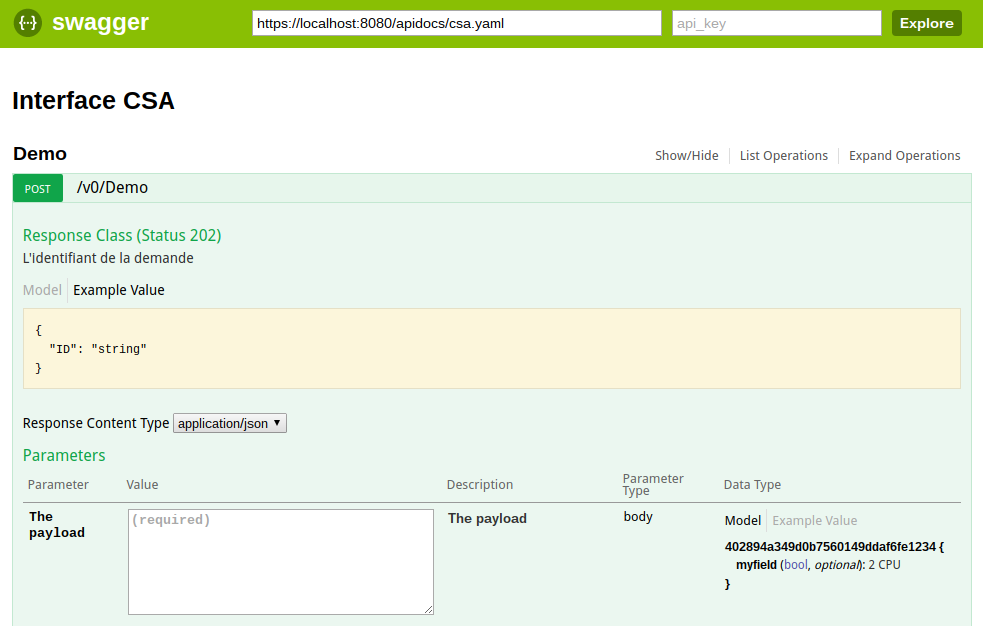
The API generated is self documented via swagger.
Just point your browser to https://localhost:8080/apidocs/
Example
Launching the CSAportal:
go run csaPortal.go
Infos:
  Debug: false
  URL: https://0.0.0.0:8080
  CSA backend: https://localhost:8888/csa
  2016/04/08 11:11:26 Adding route /v0/Demo with method POST
  2016/04/08 11:11:26 Adding route to /apidocs/
Then sending a request:
curl -i -XPOST -d'{"myfield":"false"}' -k https://localhost:8080/v0/Demo
HTTP/1.1 201 Created
Content-Type: application/json; charset=UTF-8
Date: Wed, 24 Aug 2016 20:07:03 GMT
Content-Length: 46

{"ID":"c6cdf2f0-97ef-4801-9708-e96609989d2e"}
And seeing the result:
  2016/04/08 11:12:54 Sending this to CSA: {
       "catalogId": "90d00catalogId000",
       "categoryName": "APPLICATION_SERVERS",
       "subscriptionName": "Request b0c9b4ca-e8f8-4cb9-9fa3-00be2940e8d0 generated with API",
       "subscriptionDescription": "Send by API...",
       "startDate": "2016-04-08T11:12:54.459Z",
       "endDate": "2017-04-08T11:12:54.459Z",
       "fields": {
             "field_402894a349d0b7560149ddaf6fe10156": false
       },
       "action": "ORDER"
  }
We see that the field that had a default value true is now false.
 Documentation


There is no documentation for this package.
 Source Files
 Directories